Divinum Tools Hub
Controls, PC requirements, and Deck settings so the combos actually happen.
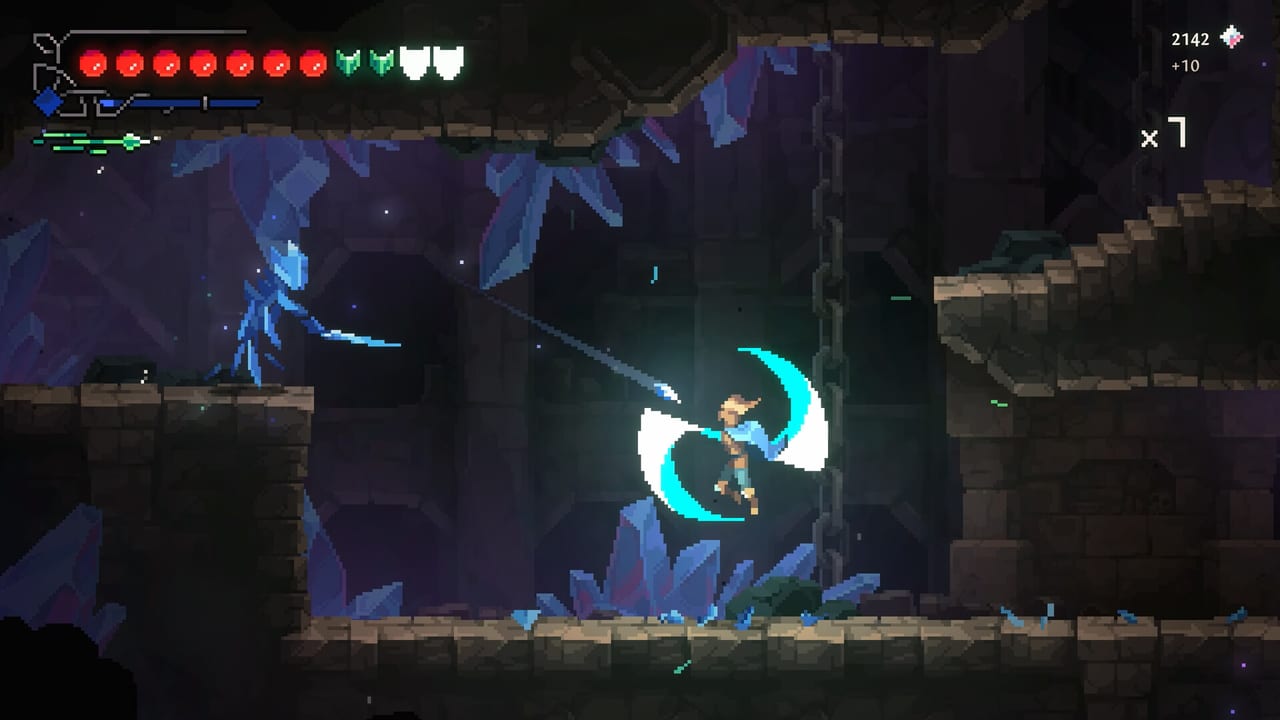
Stylish combat dies on a bad bind. This hub is the practical layer of the wiki: how Fjør is mapped, what Steam says you need to run the game, and how the Deck Verified badge behaves. It will not invent a damage calculator. Divinum does not have a public spreadsheet of +5% sticks to calculate.
Child pages:
- Controls — keyboard, pad, map button, look-up/down, launch inputs.
- System requirements — Windows and macOS minimums, 16:9 note, low-end hitching.
- Steam Deck — Verified badge, Deck hours from launch reviews, comfort options.
- Demo vs full — still-listed Steam demo, 0.39.1 QoL, and what the $14.99 campaign adds.
Use these beside getting started, not instead of it.
Why a tools hub exists
Launch reviews already split into two groups: people whose hands loved the strings, and people whose hands cramped. That is a controls and session-length problem as much as a combat problem. Another group hitched on weak PCs despite gentle official specs. Another group played on SteamOS hardware and left a review from the Deck itself. Those are tool problems. We keep them here so combo pages can stay mechanical.
Accessibility that shipped
Steam lists camera comfort, custom volume controls, a keyboard-only option, playable without timed input as a feature flag, and full controller support including DualShock and DualSense. “Playable without timed input” does not mean the optional rituals are easy. It means the product page claims you can engage the game without QTEs. Perfect blocks are still timed on purpose.
If motion in side-scrollers bothers you, turn on camera comfort before the prologue. If music buries swing cues, split the sliders. Several reviews like how musical the sword is — you want that layer audible.
What we will not add
- Redeem code forms. There are no codes.
- Damage simulators that pretend fake Rune names are real.
- An in-browser map while the community is still naming rooms. Use the in-game Tab/Select map and the exploration guide.
When Sigil Games ships extra challenge modes from the roadmap, this hub might gain a checklist page. Until then, four tools are enough: hands, hardware, Deck, and an honest demo comparison.
Suggested first setup
- Pick keyboard or pad and stay there for an hour.
- Bind dash, block, swap, and map in comfortable reach.
- Confirm 16:9 and a stable frame rate.
- If you are on Deck, read the Deck page before a ritual, not after a cramp.
Then go play. The review can wait until you have a combo counter you are proud of.
Frequently Asked Questions
Quick answers to the most common questions.
Where is the Divinum controls list?
On the controls page. Map is Tab/Select; launches are up plus attack.
Can my laptop run Divinum?
Check system requirements. Official minimums are modest, but a very weak machine still reported hitching at launch.
Is Divinum good on Steam Deck?
Steam marks it Verified. Practical caveats are on the Steam Deck page.